Digital Guerrilla
Digital Guerrilla sent selected Revit schedules into prepared Morta tables for checking. Configured rules, supplementary Python checks and a navigable summary helped reviewers find the information design teams needed to correct in Revit.
Pawel Kudosz · then Digital Information Specialist at Digital Guerrilla · Information management consultancy
Digital Guerrilla wanted design teams to see which information they needed to correct in Revit. Its review process relied on spreadsheet checks, column-by-column filtering and manual highlighting. Connecting Revit schedules to prepared Morta tables brought the checks to the exported data and gave reviewers a summary they could follow to the affected rows.
From the sample Excel review
- 185 architectural space rows flagged: all 185 rows in that sample contained information marked for correction.
- 21 of 167 product entries with classification issues: possible causes in the sample Uniclass review included use of the wrong table or description.
Executive summary
Digital Guerrilla used DiRoots SheetLink to send Revit schedules directly to Morta tables configured for the required categories and classification values. Supplementary Python checks made more detailed failures visible in a validations column, including failures without an error icon beside the individual cell. The summary gave reviewers a way to identify the rows and fields that needed attention, ready for the design team to correct in Revit. Pawel Kudosz's next goal was to let designers run checks themselves during a project stage, ahead of Digital Guerrilla's full review, while extending the work beyond Revit to IFC.
Results
The imported Revit data had coloured validation labels and an expandable summary of failed checks. A reviewer could open a result, inspect the affected rows and identify the information the design team needed to correct in Revit.
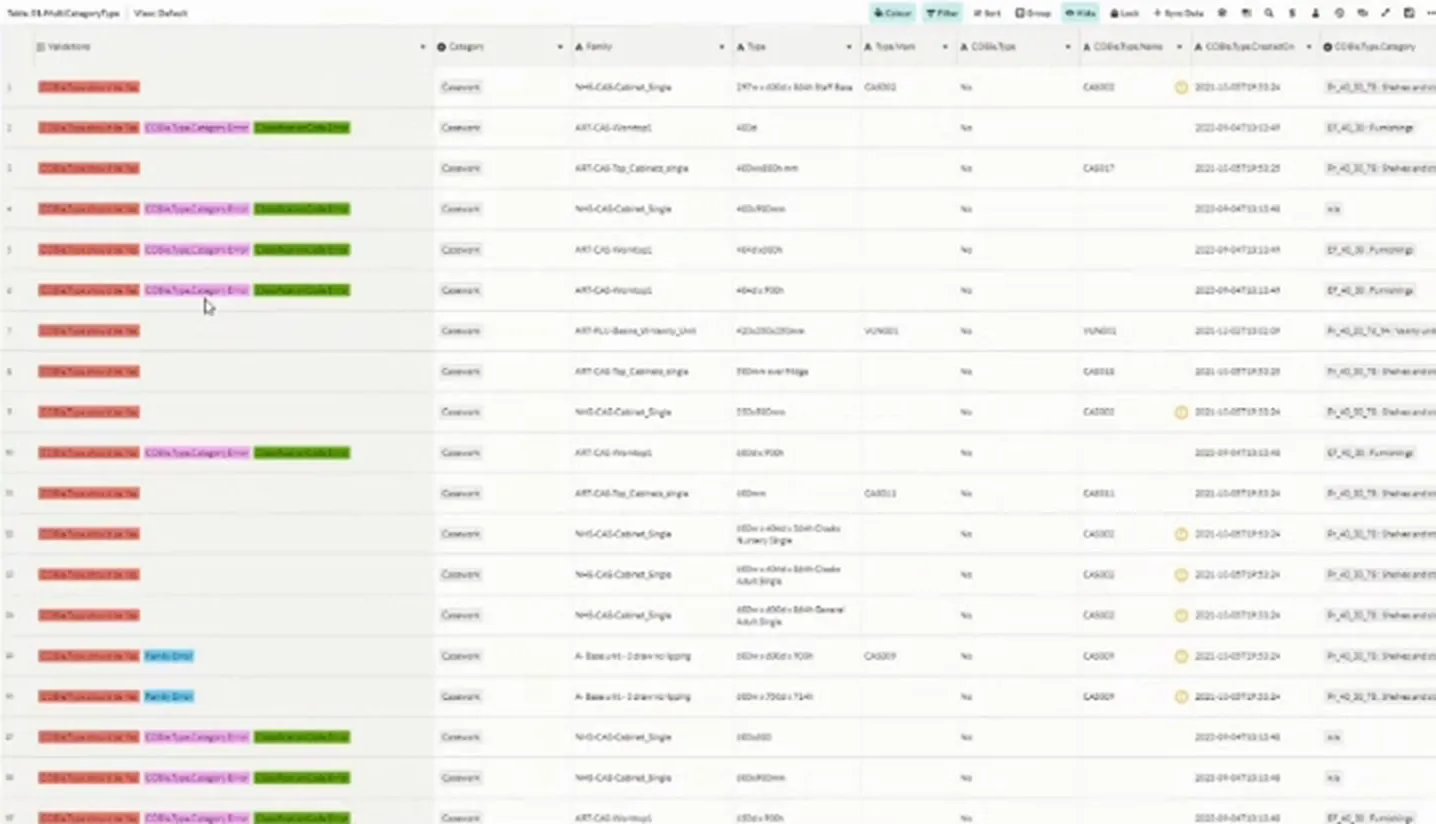
The transfer changed too. With a schedule selected in DiRoots SheetLink and a receiving Morta table already configured, Pawel could send the data directly to its destination for checking. This removed the separate CSV export and upload he had previously needed for that transfer.
Challenge
The review began with the project's information requirements: what each discipline needed to provide and in which format. Digital Guerrilla linked models to a project template containing the necessary schedules, exported them through DiRoots SheetLink and compiled spreadsheets with Power Query. Preconfigured Excel files supported checks such as whether the required Uniclass tables had been used. Maintaining those files and validation processes created repeated handling around each review.
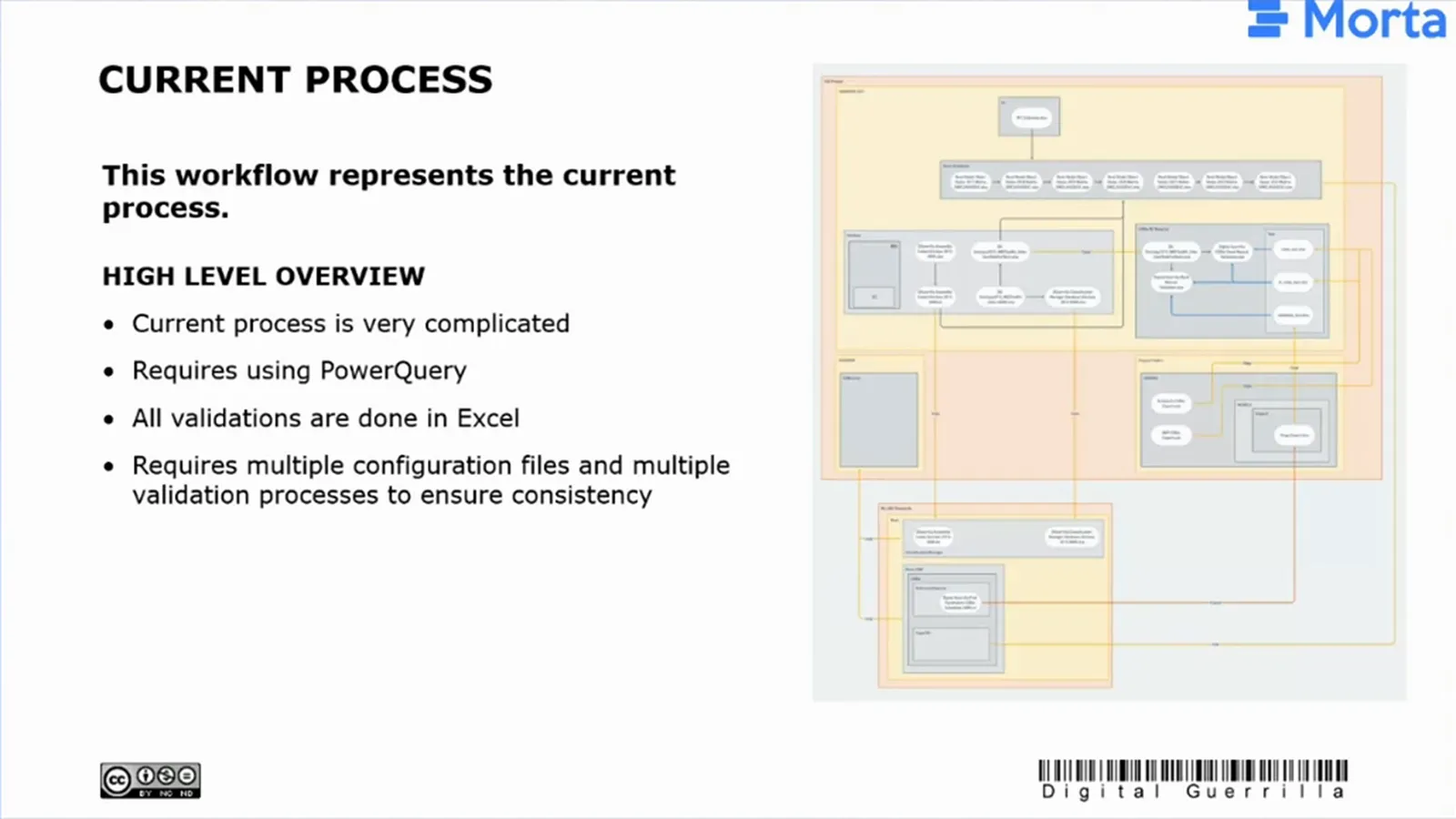
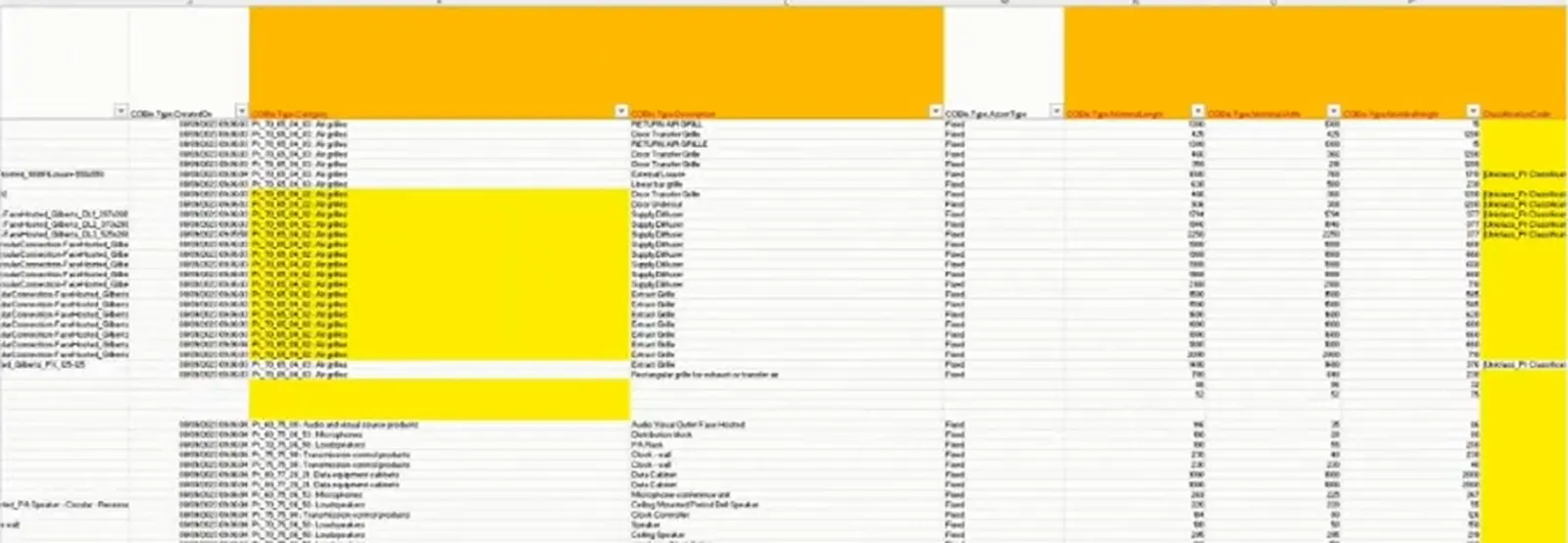
In Excel, Pawel filtered each validation column to find possible errors, inspected the corresponding information and highlighted confirmed corrections in yellow. He then cleared the filter and repeated the process across the remaining columns and tables. That manual judgement mattered because formulas sometimes returned false positives. Checking the finding before highlighting it helped him avoid asking a design team to change information that was already correct.
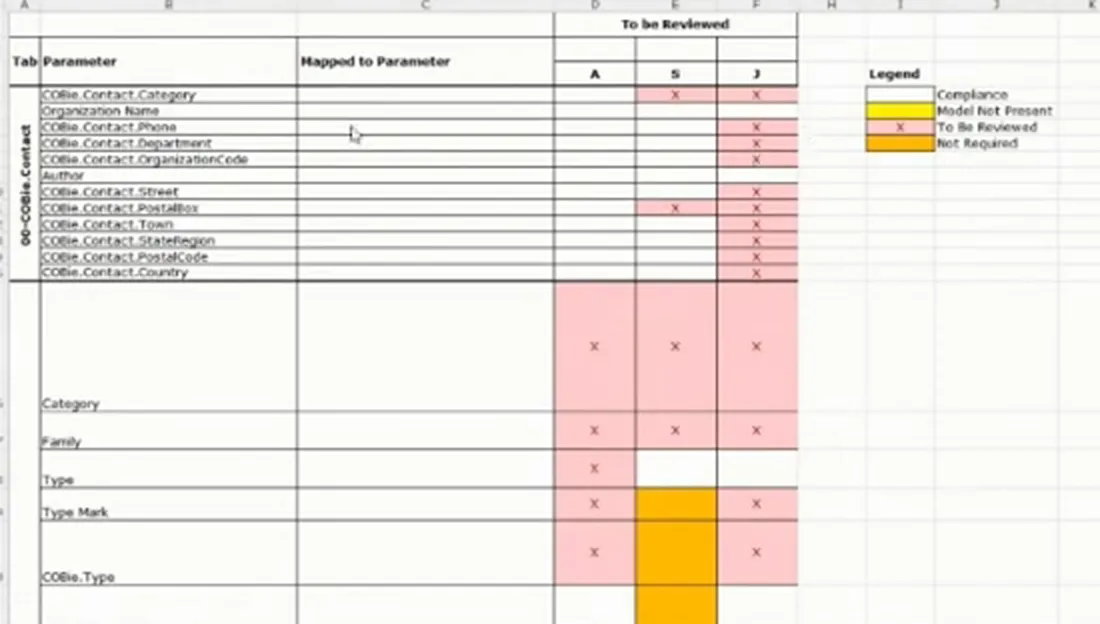
The workbook summary counted the rows needing attention in each table. In the architectural space example, it gave the architect a route to the space sheet and the highlighted information that needed reviewing. The product classification summary provided a similar starting point for checking the table or description assigned to a product.
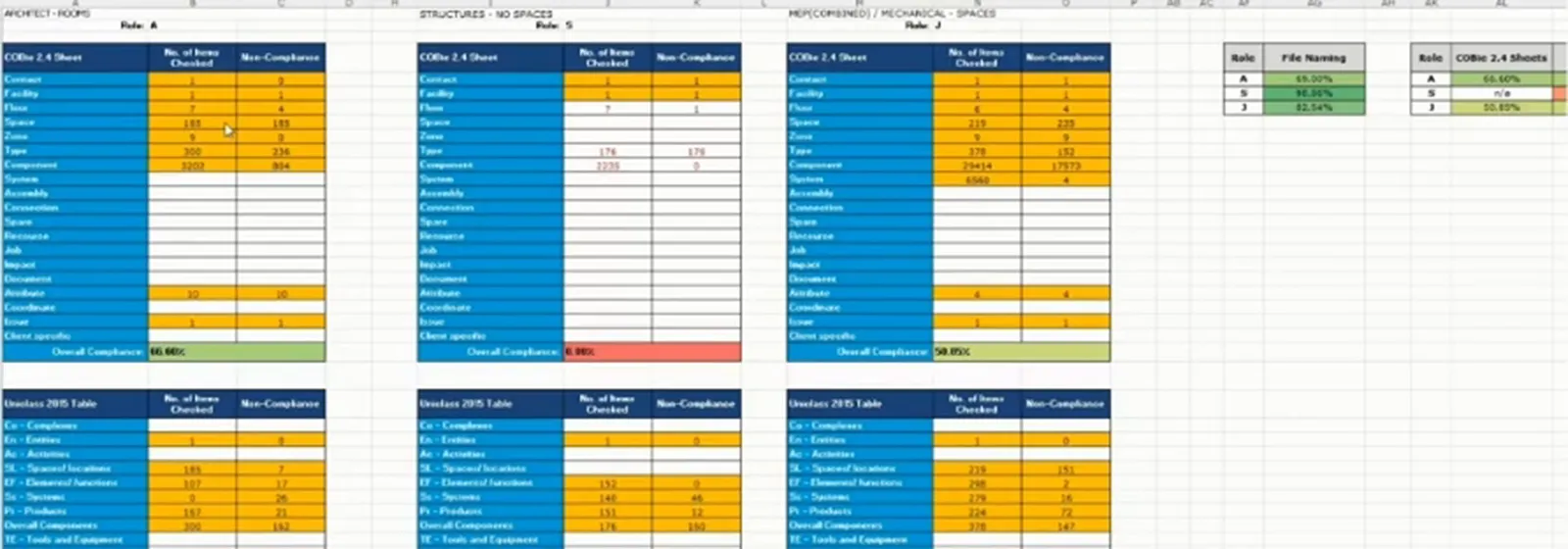
A data review matrix made the next action specific to each discipline. It identified which fields in which sheets the design team should review, so the team could find the marked rows and return to the Revit model to fix the information. Pawel's purpose was to show what needed doing before the next submission.
Solution
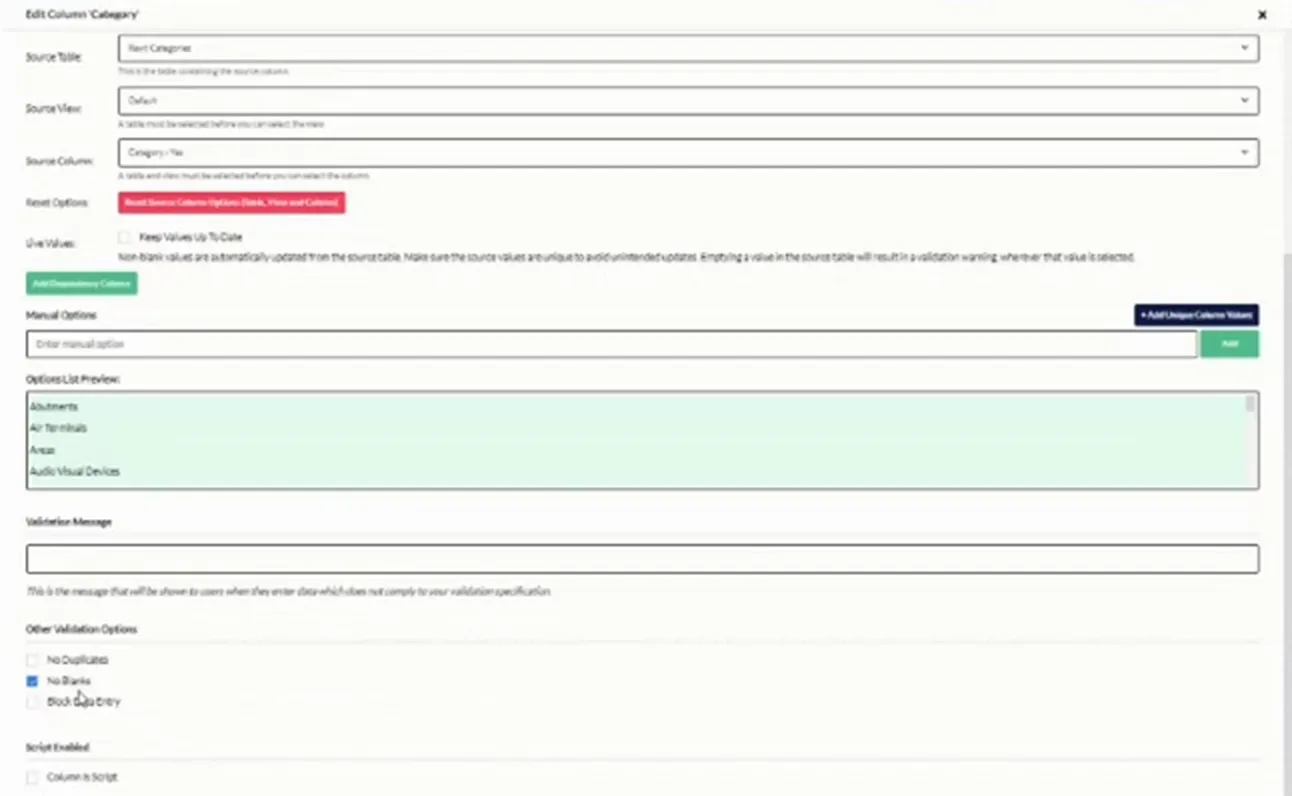
Morta's source-table rules checked the exported information against defined permitted values. The Category field referred to a Revit Categories source table, and a value without a match was flagged. Columns and curtain panels were outside the permitted selection in Pawel's example. The flag identified an item for the reviewer to check against the export requirements, giving the design team a specific item to revisit in Revit.
The COBie.Type.Category field was checked against the selected Uniclass 2015 products table, so a code from the wrong table or an unmatched value was flagged. The classification-code check also rejected blanks. With the affected row identified, the reviewer could point the design team to the item whose classification needed correcting in Revit.
Some requirements needed additional checks. In Pawel's example, COBie.Type contained No where Yes was required, but the cell had no error icon. Supplementary Python scripts reported that failure in the validations column. Reading that column gave the reviewer the requirement that had failed and the rows needing correction.
An expanded validation summary also exposed a missing COBie.Type.Description even though the empty cell had no error icon beside it. The classification-code example did have a cell-level indicator. The reviewer therefore needed to read the validations column and follow its results to the individual fields, identifying all the corrections listed there before passing the work to the design team.
Implementation
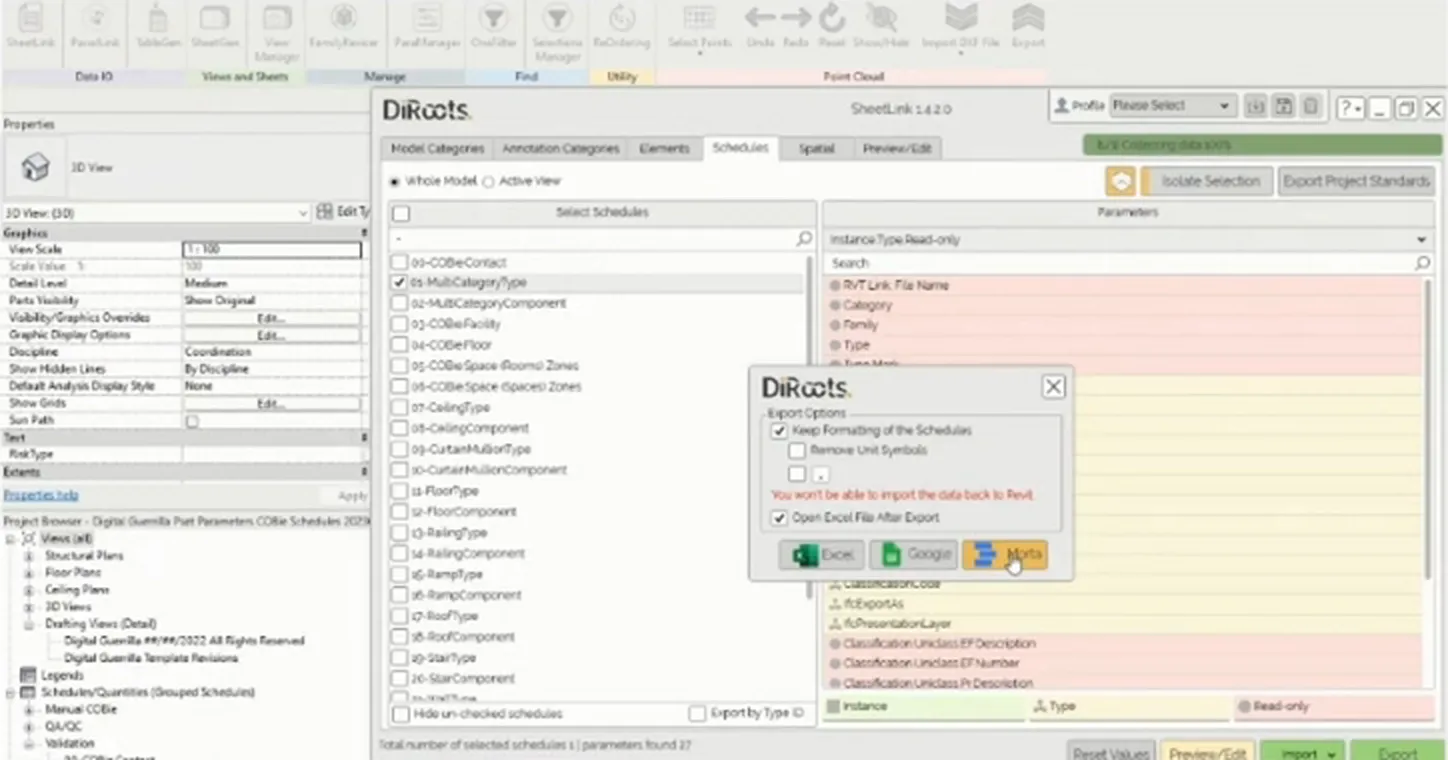
The receiving tables were prepared before the Revit export. In DiRoots SheetLink, Pawel selected the schedule, chose Export and retained Keep Formatting of the Schedules to include linked-model data. He then selected the project and destination schedule in Morta. Because that destination was already configured, the incoming information was checked against its rules.
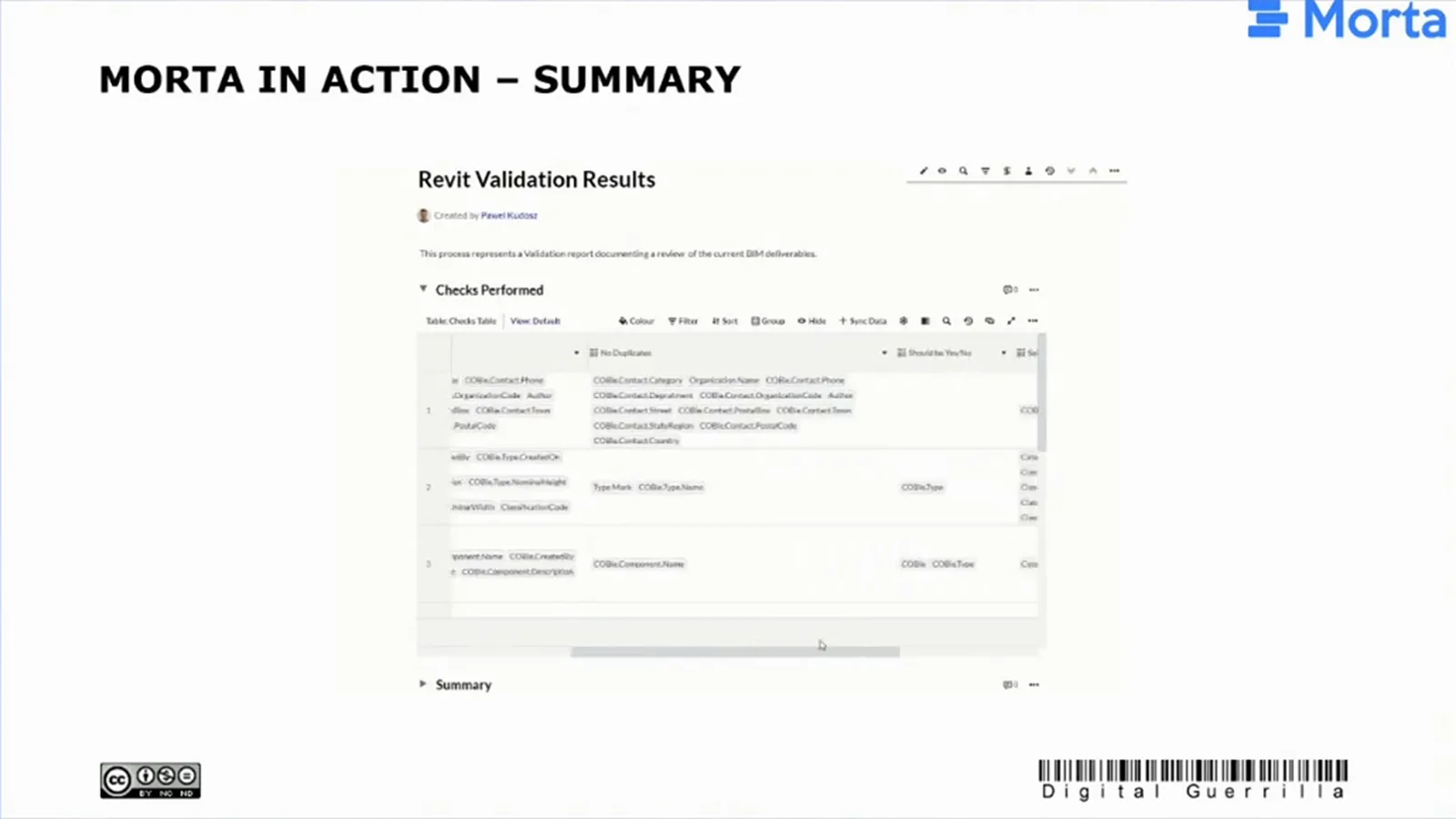
A checks-performed record explained what had been tested in each table, including blanks in Category, Family and Type, duplicate Type Marks, required COBie yes/no values and matches to source tables. A design team receiving the results could see the scope of the review, expand the summary and open the relevant exported schedule. That gave the team both the requirement being checked and the information needing correction.
| Task | Earlier handling | With the configured Morta workflow |
|---|---|---|
| Transfer Revit data to Morta | Export CSV files, then upload them | Send a selected SheetLink schedule directly to a prepared destination table |
| Identify corrections | Filter Excel validation columns, inspect findings and highlight confirmed errors | Read validation labels and expand the summary to inspect affected rows |
| Check reference values | Maintain configured spreadsheet checks, including Uniclass references | Use source-table rules to flag values outside the selected categories or classification table |
| Review more detailed requirements | Work through the spreadsheet validation results | Read supplementary Python results in the validations column, including failures without cell-level icons |
Comparing planned and delivered information
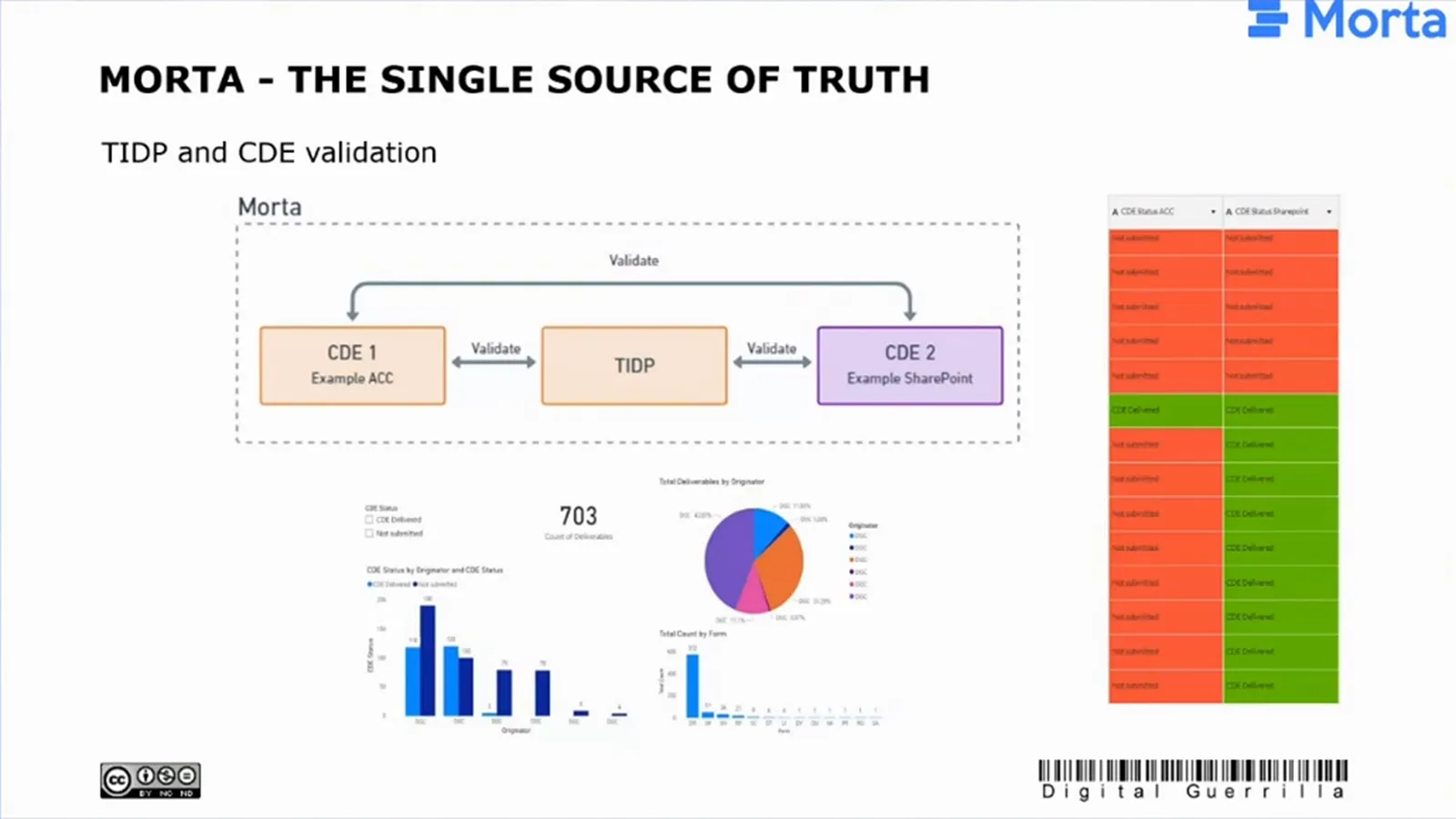
Digital Guerrilla had also been working on comparisons between a task information delivery plan (TIDP) and common data environments (CDEs). Checking in both directions could identify a file listed in the plan but absent from the CDE, or an uploaded file with no corresponding plan entry. Those are different discrepancies for the person resolving the delivery to investigate: a missing planned upload, or a file whose place in the plan needs checking.
Pawel also outlined a contractor-to-client CDE comparison. At the end of a stage, it could identify files still missing from the client's SharePoint. Power BI charts could present the outstanding items, giving the person responsible for completing the delivery a view of what still needed attention.
About Digital Guerrilla
Digital Guerrilla is an information management consultancy. At the time of the showcase, Pawel's work covered information validation reviews, model coordination and clash detection, with deliverables checked against project requirements.
What's next
The Revit process was still a work in progress. Pawel wanted design teams to use the checks themselves during a stage, rather than wait for Digital Guerrilla to receive the models and return its findings. A team could export its data halfway through stage three, identify errors and correct them before Digital Guerrilla carried out a full end-stage review. IFC was another planned extension beyond the Revit exercise.
